Screen Translator
iOS doesn’t let apps show translations directly over the text on screen, so I designed around the Dynamic Island. A long press shows the translation and a resizable region lets users choose which part of the screen to translate.
Keywords: Mobile, Prototype, UI/UX
Role: Personal Project
Date: 2026
Problem
Constantly switching apps to translate Korean is time consuming and makes learning words less efficient due to context switching.
Solution
A screen recording app that displays real-time Korean to English translations on the Dynamic Island and allows users to save sentences for learning.
Choose a section of the screen to translate
Translations on the Dynamic Island
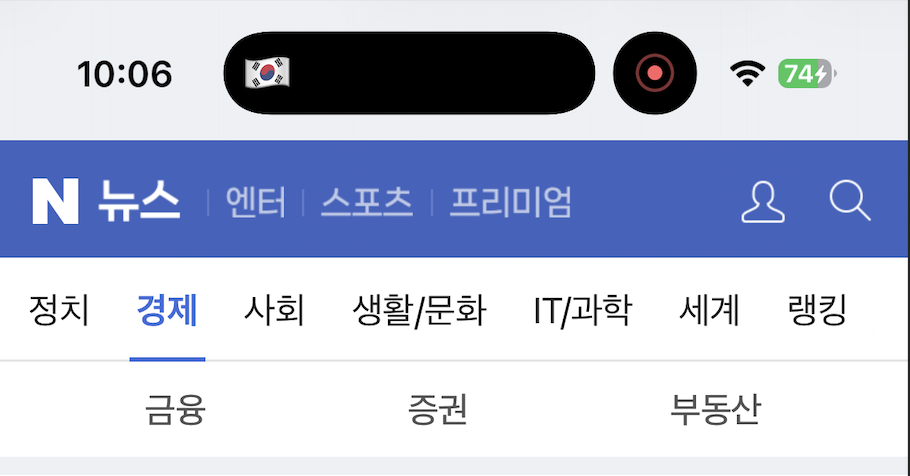
I designed a minimal, compact, and expanded state. The minimal state is the default because the iOS recording indicator always shares the island. Considering the lack of space and front-facing camera, I kept the UI simple and used emojis to represent the language being translated.
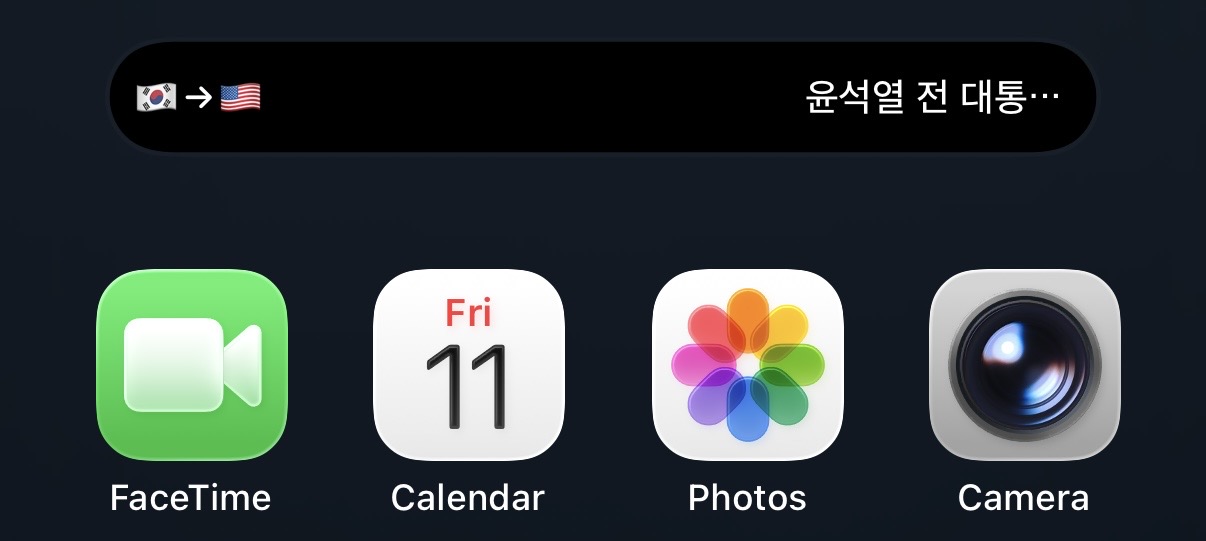
iOS keeps Live Activities in the minimal view so users have to long press the island to expand it and see a translation. Although this was a limitation, combining the long press with the region selector allowed the user to decide when and what text they wanted to translate.
The compact state shows the last translated text.
Selecting a translation region
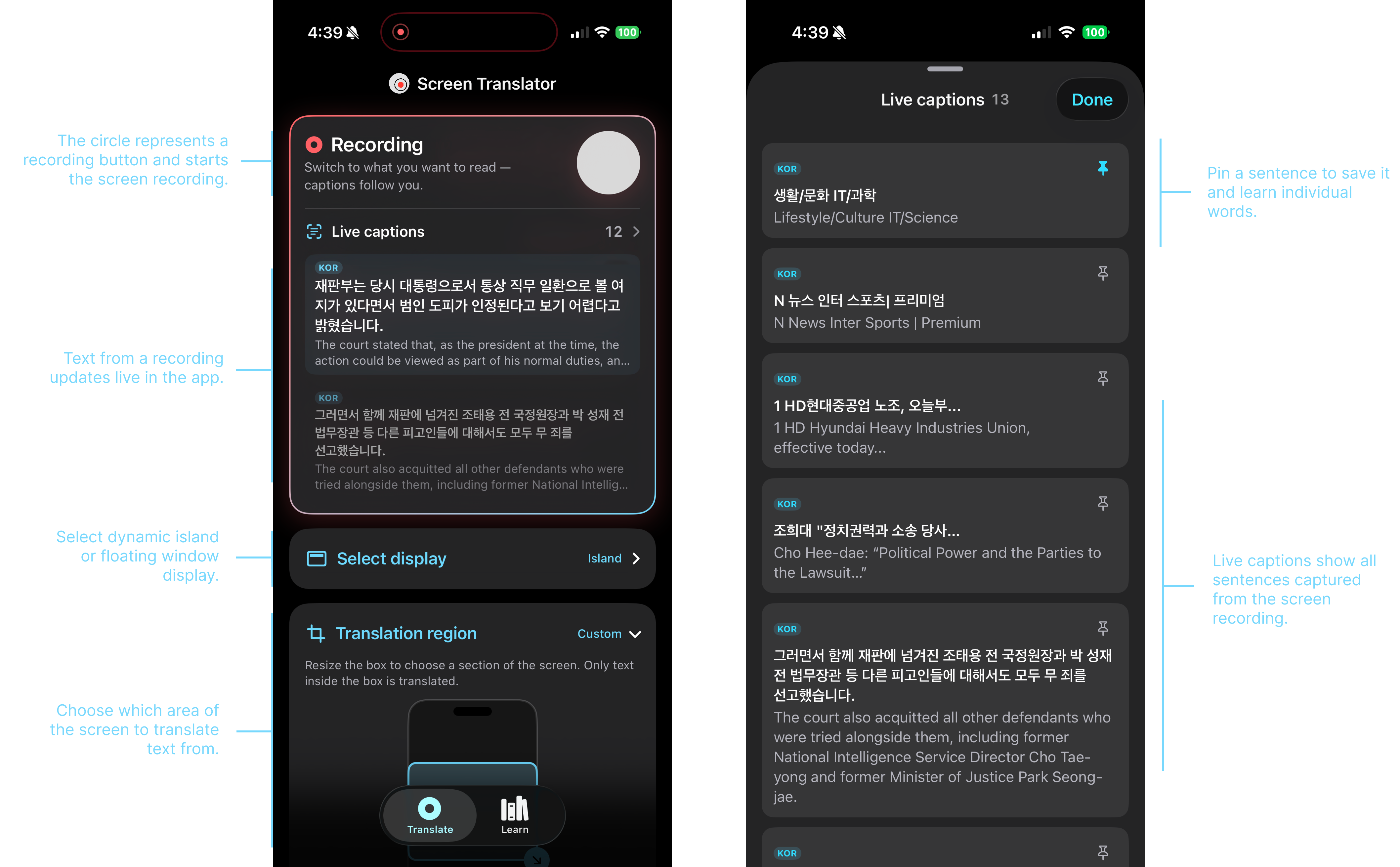
I created an interactive crop box to select a specific area of the screen, aligning the app with the user’s intent and reducing clutter.
Resize the box to choose a section of the screen. Only text inside the box is translated.
Saving sentences for learning
Pinning a sentence saves it to the "Learn" page and breaks it into individual words. Tapping a word shows its definition as used in that sentence.
DeepL was great for sentences, but unreliable for words so I used Opus 5 to define each word as it’s used in the sentence.
First UI design
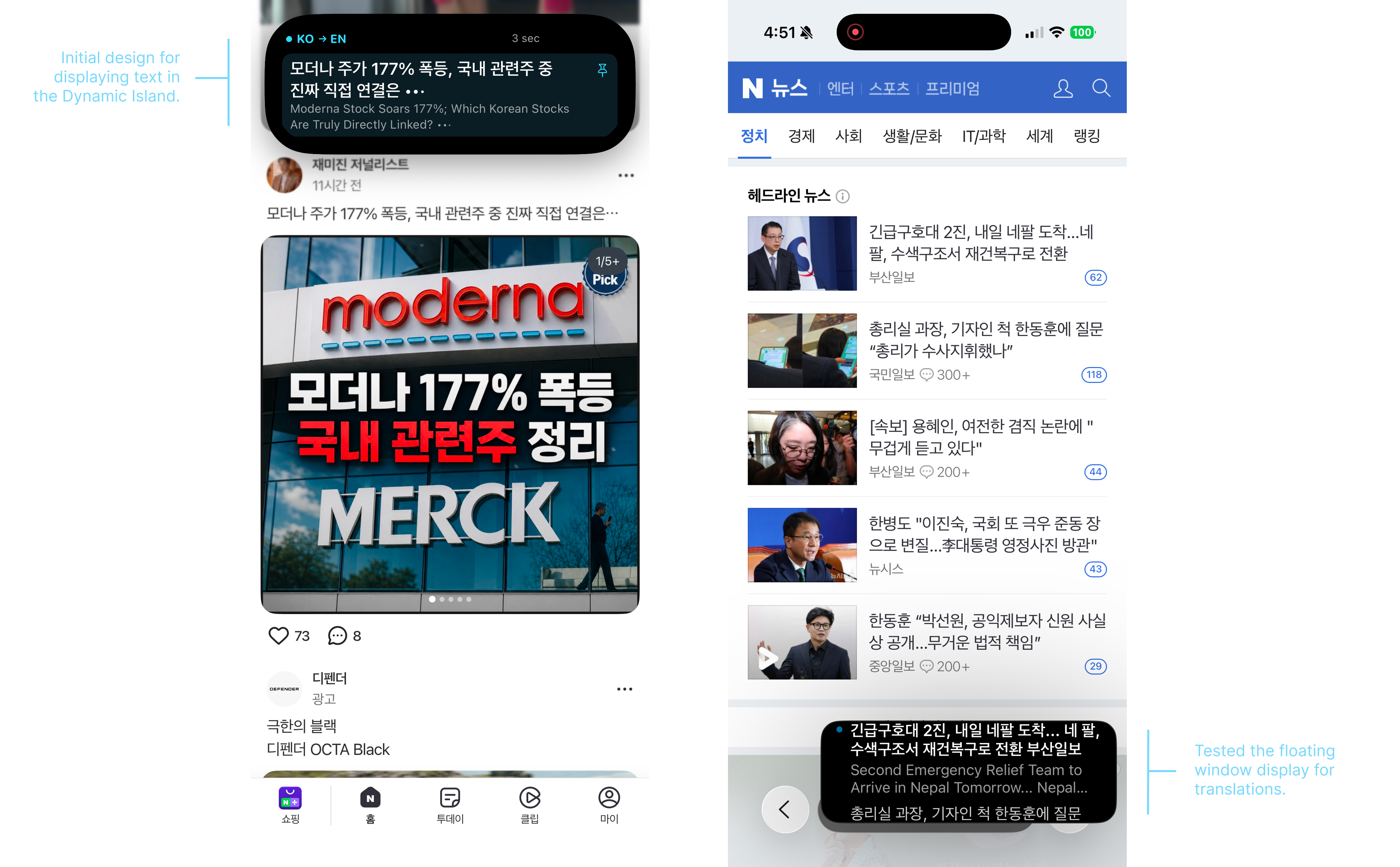
I tested the island and floating window in the first prototype to see which display felt better to use. The floating window could be expanded to show more words, but I preferred the island because long pressing it gave me control over when to see a translation. I focused on the Dynamic Island and making it intuitive to use.
Current UI design
Results
At this stage, Screen Translator is a prototype and I decided not to put it on the App Store because the user experience wasn’t quite there yet. The next steps are improving the accuracy of translations for visuals and the long press + translation region workflow so it feels closely aligned with the user’s expectations. A future update would add languages and allow users to translate between any two languages, not just Korean to English.